
Where:Settings→Text Messages (SMS)
Step by step
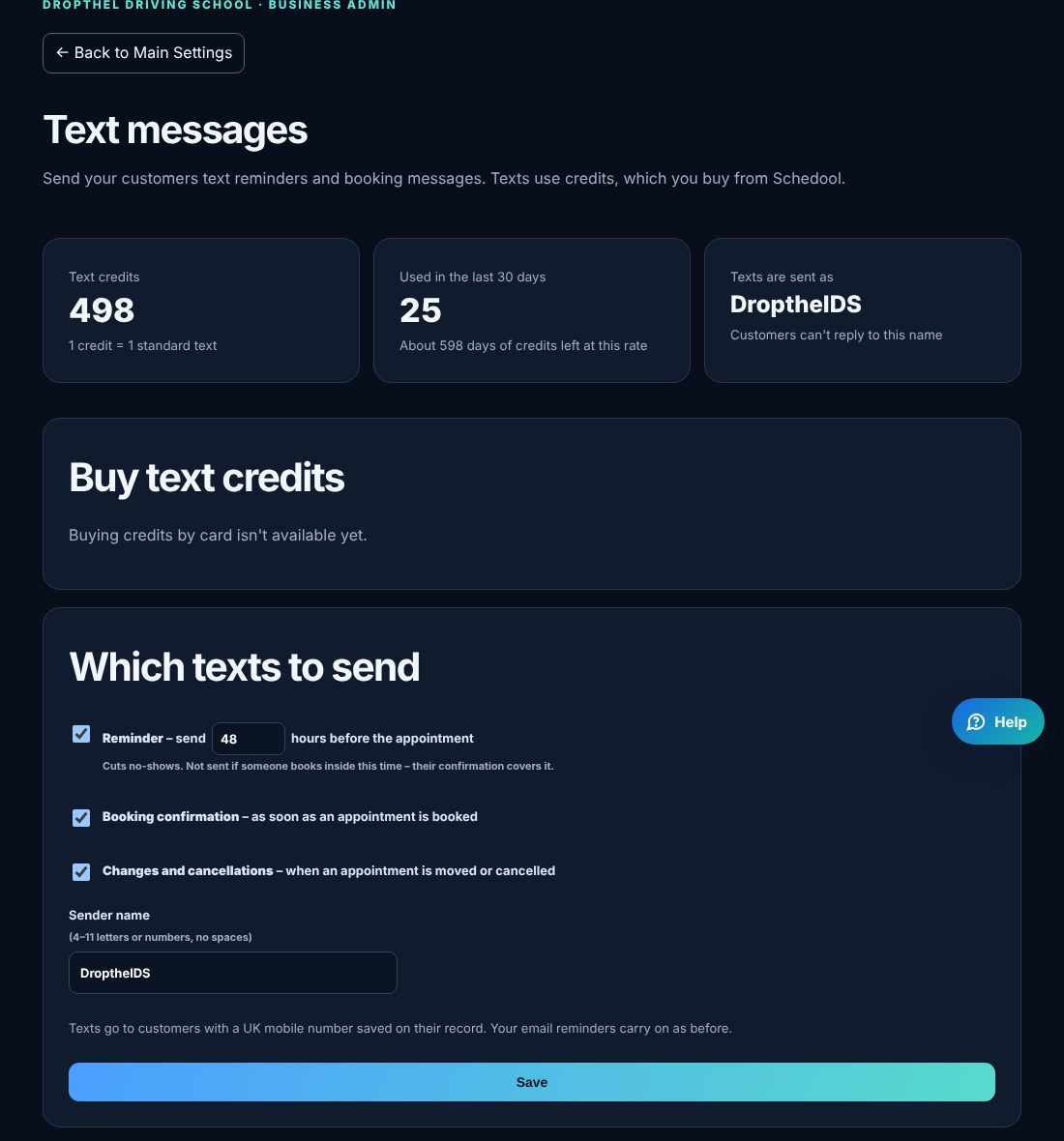
- Go to Settings → Text Messages (SMS).
- Under Buy text credits, choose a pack and pay by card. Credits are added straight away and don’t expire. 1 credit = 1 standard text.
- Under Which texts to send, tick Reminder (and choose how many hours before), Booking confirmation, and Changes and cancellations. Save.
- Check the sender name – it’s what customers see the text is from. It must be 4 to 11 letters or numbers with no spaces, for example DropthelDS.
- Use “Send this to your phone” to see a test text for yourself.
- Recent texts shows every text: sent, skipped (and why), or waiting for credits.
💡 Texts go to customers with a UK mobile number on their record. Your email reminders carry on as well.
💡 If you run out of credits, texts wait and go out as soon as you top up (reminders until the appointment starts). You get an email when credits run low.
💡 Customers can’t reply to the sender name. Add your phone number in Settings → Business Details and it’s included so they can call you.
💡 If a customer asks you to stop texting them, add them under “Customers who don’t want texts”.
💡 To change the wording, add an SMS template in Settings → Message Templates.