
Where:Settings→Message Templates
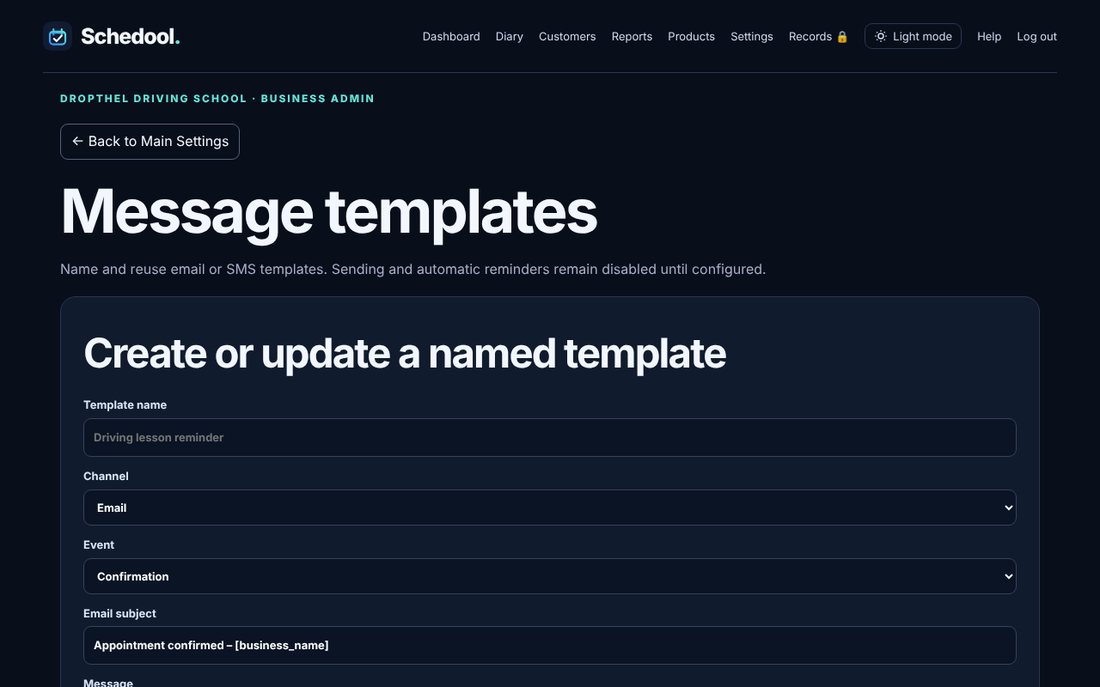
Step by step
- Go to Settings → Message Templates.
- Give the template a name, then choose the channel (email or text) and the message, for example Reminder.
- Write your message. Use Insert personalisation to add fields like first name, date and time.
- Leave “Use this template for this message” ticked, then click Save template. From then on, that message uses your wording.
- To go back to Schedool’s standard wording, untick “Use this template” and save, or delete the template.
💡 One template is in use for each message – it’s marked “In use” in the list. Switching on a new one switches off the old one.
💡 Use Restore default message to start from the standard wording.
💡 The no-show email and review requests have their own editors in Settings → Notifications & Reminders and Settings → Reviews.