
Where:Settings→Reviews→Ask for reviews after appointments
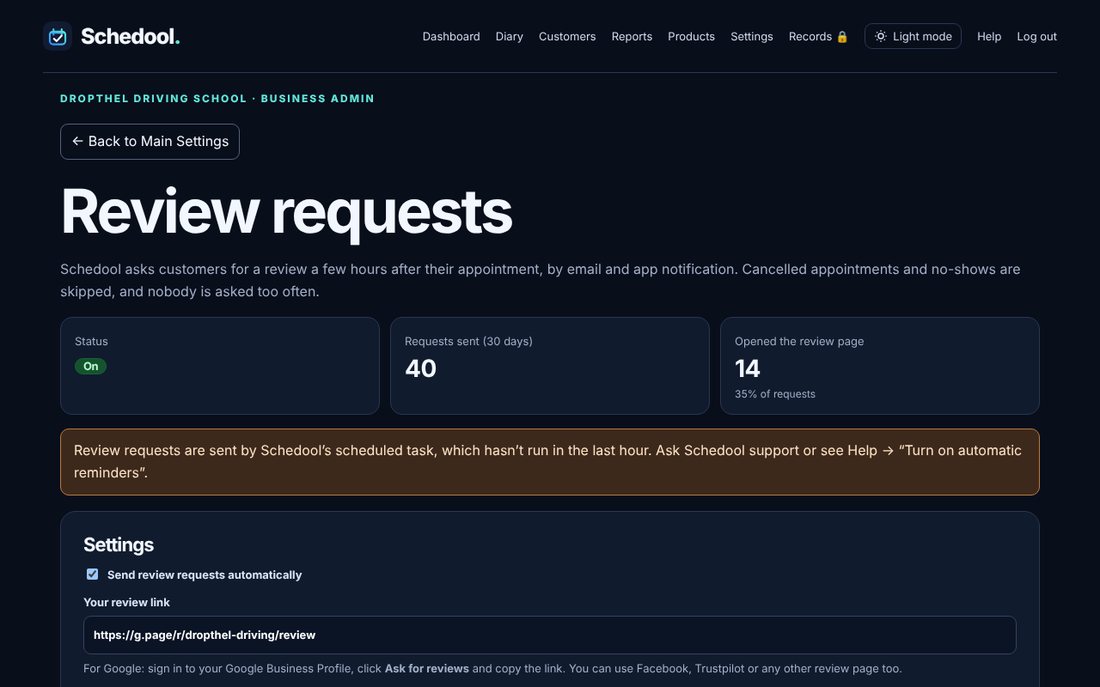
Step by step
- Open Settings → Reviews and scroll to Ask for reviews after appointments.
- Optional: paste your Google review link (in your Google Business Profile, choose Ask for reviews and copy the link). After leaving their review on Schedool, customers are offered it too.
- Choose how many hours after the appointment to send it, and how long before the same customer is asked again.
- Change the subject and message if you like – [name] and [business_name] are filled in for you.
- Tick Send review requests automatically and save. Use Send me a test email to see what customers get.
💡 Requests are only sent for appointments that went ahead – not cancellations or no-shows.
💡 Everyone who had an appointment is asked, and everyone is offered your Google link whatever their rating – Google doesn’t allow asking only happy customers.
💡 Reviews from these emails are marked “Verified customer”.
💡 Requests need Schedool’s scheduled task to be running – see “Turn on automatic reminders”.
💡 You can also ask when you record a test result, or ask one customer any time with the Ask for a review button on their page.