
Where:Schedool app→Diary
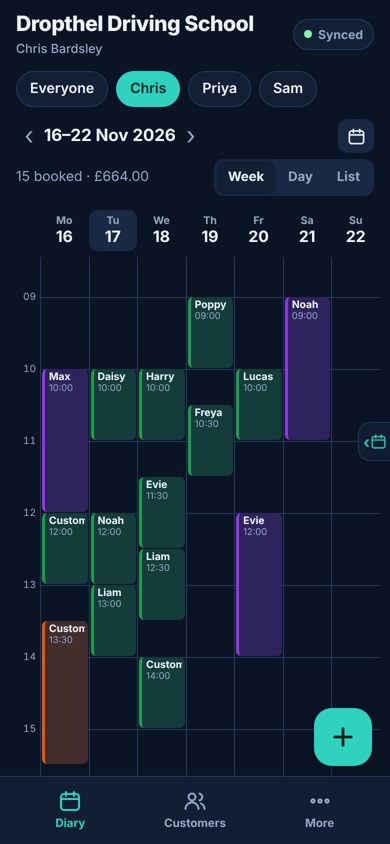
Step by step
- Choose Week, 3 days, Day or List with the switch at the top. Phones open on 3 days, starting from the day you’re looking at; tablets and computers open on Week. The app remembers your choice.
- Use ‹ › or swipe left and right to move on or back (a week at a time in Week view, 3 days at a time in 3 days), and tap Today to jump back to today. In Week and 3 days you can also tap a week box (e.g. Nov 16 – 22) to jump to that week. Tap a day’s name to open that day.
- To move an appointment, break or class, hold your finger on it for a moment until it lifts, then drag it to a new time – or, in Week or 3 days view, to another day. In Day view you can drag an appointment across to another team member. Let go to save.
- To make it longer or shorter, drag the small bar along its bottom edge up or down. The new times show as you drag.
- Tap an empty time and choose Appointment, Break or Class. The time you tapped is filled in for you.
- On an iPad or computer, a month calendar sits on the left with that day’s appointments, breaks and classes listed underneath. Tap a date (or a day’s name above the diary) to see its list, and tap anything in the list to open or edit it. For more diary space, tap ‹ Hide (or swipe the panel left); tap the calendar tab at the left edge to bring it back. The app remembers your choice.
- On a phone, tap the calendar button or the calendar tab on the right-hand edge. The calendar slides in with the day’s list underneath – tap dates to look through them, then tap an appointment to open it. Dots show days with bookings.
- Tap an appointment to call, text, email or get directions, take payment, edit it, or mark it done or cancelled. The Week / 3 days / Day / List switch changes layout.
💡 If a move clashes with another booking or is outside working hours, the app asks before saving.
💡 A quick tap opens a booking; holding starts a move, so scrolling still works normally.
💡 When everyone is shown in Week view and bookings overlap, they show as coloured bars – pick a team member to see names and times.