
Where:Settings→Website Booking Widget
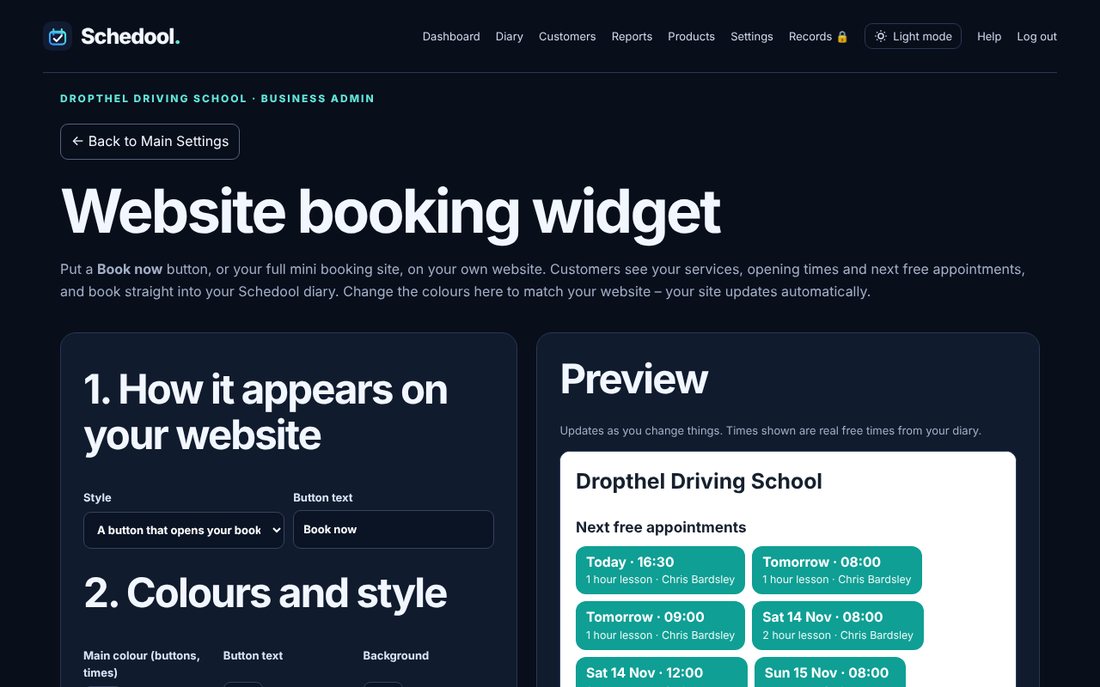
Step by step
- Go to Settings → Website Booking Widget.
- Choose a Book now button or the mini booking site shown in the page.
- Add Your website address if you have one – your logo and business name on the mini site then take customers back to your website.
- Pick your colours, font and what to show (services, opening times, next free times). Customers tap a service to open it and see its next free times. Watch the preview and click Save widget.
- Under “Add it to your website”, click Copy.
- In your website builder, add an Embed / HTML / Custom code block and paste the code.
💡 You only paste the code once – saved changes appear on your site automatically (except the button colour and text, which are part of the button code).
💡 Not showing? Make sure you used an HTML or embed block, not a text block.
💡 The free times shown are refreshed every few minutes in the background, so the mini site opens quickly. If someone picks a time that’s just gone, the booking page offers the nearest free ones.