
Where:Settings→Get the App→For your customers
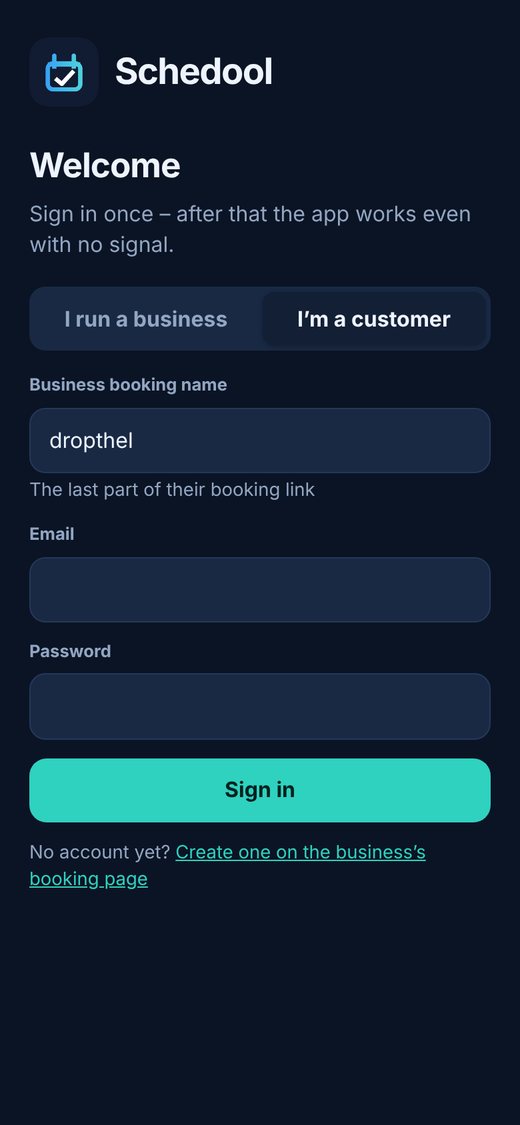
Step by step
- Open Settings → Get the App and use the For your customers QR code: print the poster, download the code, or tap Copy link to send it by text, email or WhatsApp.
- The customer scans the code or taps the link, and your app opens on their phone.
- They sign in with their email and password. New customers create an account with the email you have for them, so their bookings and passes are already there. (You can also send an invite: open the customer → Invite to an online account.)
- To add it to their home screen – Android: tap the “Add to home screen” banner or Install in the Chrome menu. iPhone: tap Share, then Add to Home Screen.
- They open it from the home screen and tap More → Notifications → Turn on, so they get reminders, changes and your messages.
💡 In the app customers can book, change or cancel (within your rules), see passes, credit and payments under Account, and message you under Messages.
💡 iPhone only allows notifications once the app is on the home screen.
💡 Customers need a connection to book, because times are checked live – their upcoming bookings still show offline.