
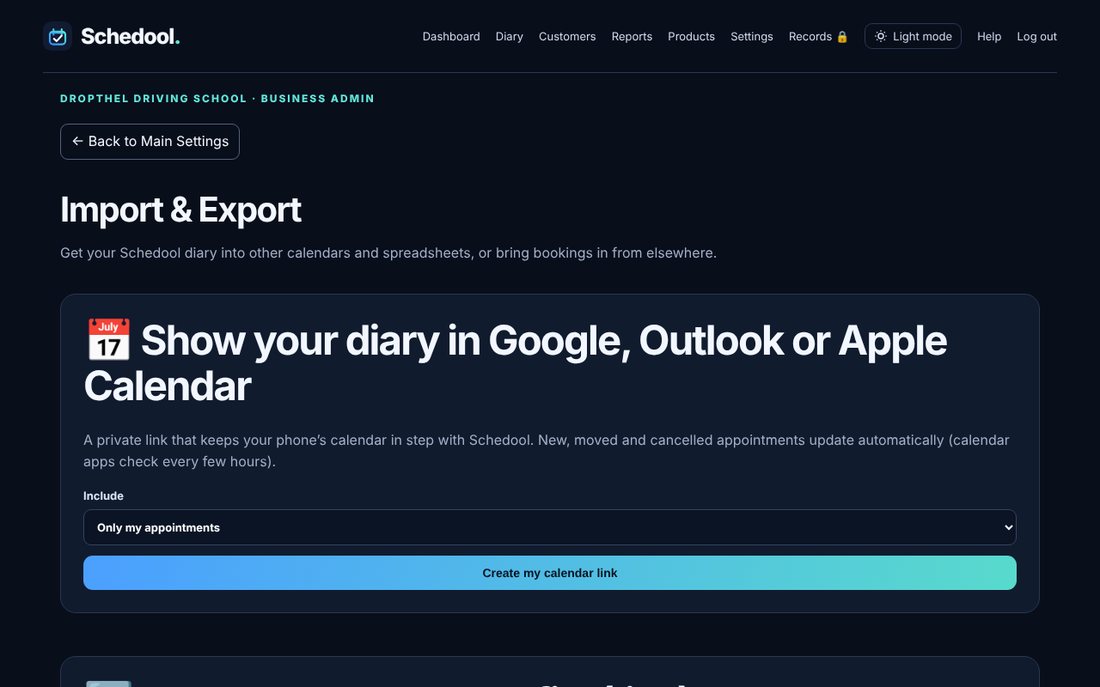
Where:Settings→Import & Export
Step by step
- Go to Settings → Import & Export.
- Live calendar link: create it and add it to your phone or Google calendar – your Schedool diary stays up to date there.
- .ics download: a one-off file for calendar apps.
- CSV export: a spreadsheet of appointments for a date range.
- CSV import: upload a spreadsheet from another system, check the preview, then import.
💡 Keep your live calendar link private – anyone with it can see your appointments. You can reset it any time.
💡 Moving from Ovatu? Import your customers first (Customers → Import customers), then your appointments export as it comes – cancelled bookings are skipped, no-shows are kept, and ones already paid can be shown as paid.