
Step by step
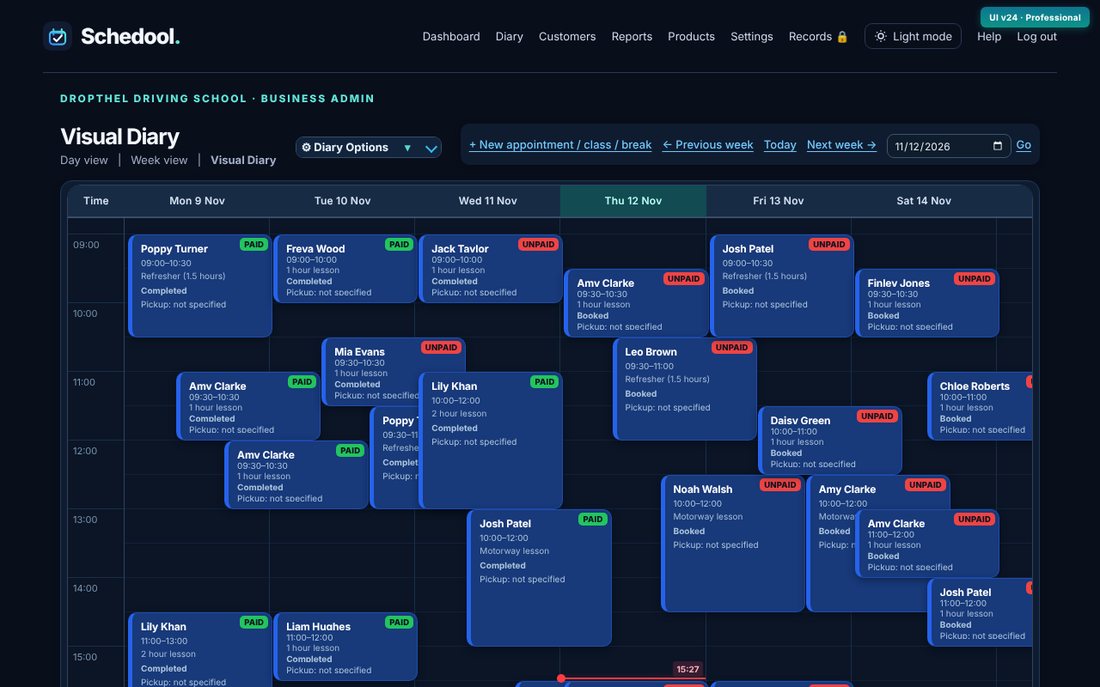
- Click Diary in the menu. The Visual Diary shows the week as a grid, with times down the side (each hour, plus 15, 30 and 45).
- On the left is a month calendar – dots show days with bookings. Click any date to jump to it, or use ‹ › to change month.
- Under the calendar is that day’s list of appointments, breaks and classes. Click one to open it, just like clicking it in the grid. Click a day’s name at the top of the grid to show its list.
- For more diary space, click ‹ Hide at the top of the panel. Click “Calendar & day list” to bring it back – Schedool remembers your choice.
- On a phone or smaller tablet, tap the calendar tab on the right-hand edge of the screen (or swipe in from that edge) to slide the calendar out.
- Use ← Previous week, Today and Next week →, or pick a date and click Go. Day view and Week view (lists) are under the heading.
- Open Diary Options to filter by team member and change what you see.
💡 Choose how many days to see with the Days buttons (1, 2, 3, 5 or 7) next to Today. Previous and Next then move by that many days, and on a phone you can also swipe the diary left or right. The row of week boxes above the diary (e.g. Nov 16 – 22) jumps straight to any week – the week you’re viewing is filled in green and this week has a green outline. Each phone, tablet or computer remembers its own choice – phones start at 3 days so nothing is squashed. You can still drag appointments to a new time or day in any of these.
💡 Set which view opens first in Settings → Diary Preferences.
💡 Each appointment shows a Paid / Unpaid badge in the corner (a green or red dot when the days are narrow).
💡 Click ‹ Hide on the calendar panel for more room. To bring it back, click the Calendar & day list tab down the left of the diary. On a phone, tap the small calendar tab on the right-hand edge of the screen (or swipe in from the right edge) and the calendar slides in; swipe it back to the right to close it.
💡 All 7 days fit across the screen on a computer or iPad.